Thursday, October 10, 2013

flash mod rom newman n1

http://amitbhatia.in/newman/

http://forum.xda-developers.com/showthread.php?t=2222202


Thursday, February 28, 2013

Vivacom gprs android

За да настроите ръчно апарата като GPRS модем, следвайте тези лесни стъпки:


  1. Натиснете бутон Меню за достъп до главното меню
  2. Изберете Настройки
  3. Изберете Мрежа и безжична връзка
  4. Изберете Мобилни мрежи
  5. Изберете Имена на точки за достъп
  6. Натиснете бутон Опции и изберете Нов APN
  7. Отидете на Име, въведете VIVACOM INTERNET GPRS и натиснете OK
  8. Отидете на APN, въведете internet.vivacom.bg и натиснете OK
  9. Отидете на Име, въведете VIVACOM и натиснете OK
  10. Отидете на Парола, въведете VIVACOM и натиснете OK
  11. Отидете на Тип удостоверяване и изберете None
  12. Отидете на Тип APN, въведете default и натиснете OK
  13. Всички други опции ги оставете по подразбиране
  14. Натиснете бутон Опции и изберете Запис
  15. Активирайте VIVACOM INTERNET GPRS
  16. Натиснете бутон Назад 4 пъти, за да се върнете в главното меню

Monday, January 7, 2013

Manual for car from russion brothers

http://volkswagen.msk.ru/index.php?p=vw_golf4_1j
http://volkswagen.msk.ru/

Wednesday, November 21, 2012

Howto- Install LAMP server in Fedora 17

clik here


or read this


In this post i will show you the steps to install LAMP server in Fedora 17 “Beefy”
1- Install Mysql Server
yum install mysql mysql-server
Start and Enable Mysql service
systemctl start mysqld.service
systemctl enable mysqld.service
Make  Mysql password  with  :
mysqladmin -u root password [your_password_here]
Check the connexion  to the databae server with:
mysql -h localhost -u root -p
2- Install HTTPD and  PHP
a- Install Apache (httpd)
to install  Apache  Server:
yum install httpd php php-common
Start  and  enable  httpd  service
/etc/init.d/httpd start
# OR #
service httpd start
chkconfig --levels 235 httpd on
 b-  Install  PHP Modules
 yum install php-pecl-apc php-cli php-pear php-pdo php-mysql php-pgsql php-pecl-mongo php-sqlite php-pecl-memcache php-pecl-memcached php-gd php-mbstring php-mcrypt php-xml
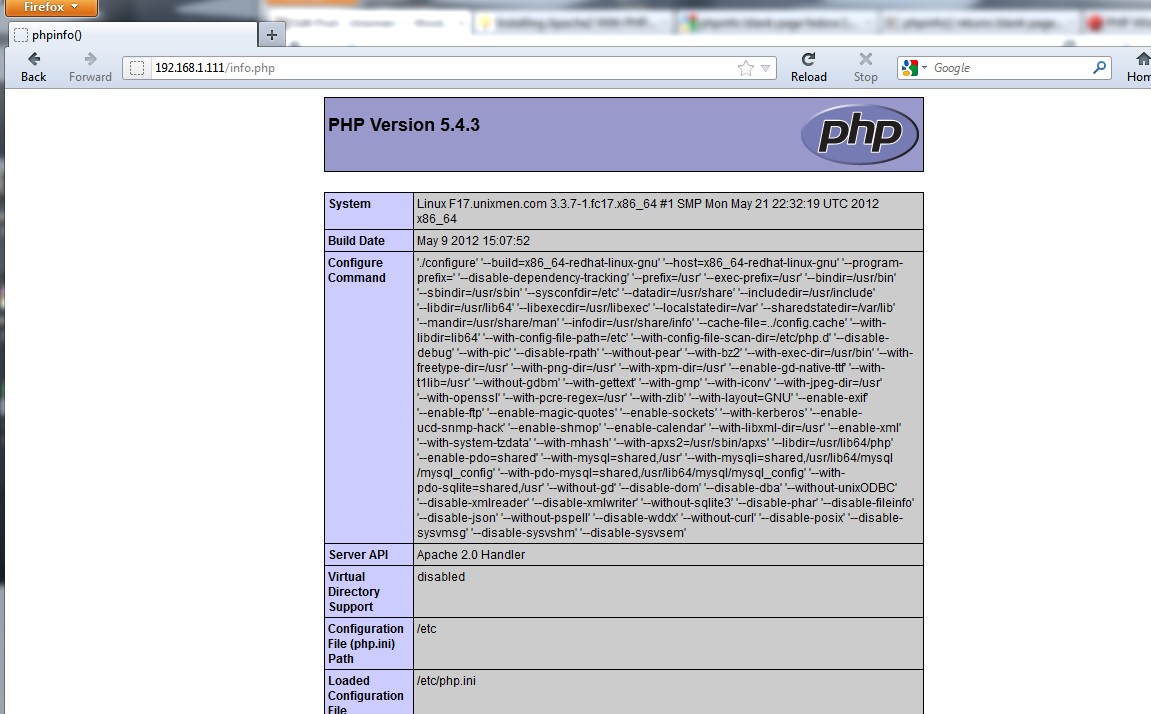
Check php  page:
vi /var/www/html/info.php  and  add

save and    open browser to check   : http://ip/info.php
 3- Install PhpMyAdmin
yum install phpmyadmin
restart  Apache:
service  httpd restart
Check  the  phpmyadmin page
http://ip/phpmyadmin
In this post i will show you the steps to install LAMP server in Fedora 17 “Beefy”
1- Install Mysql Server
yum install mysql mysql-server
Start and Enable Mysql service
systemctl start mysqld.service
systemctl enable mysqld.service
Make  Mysql password  with  :
mysqladmin -u root password [your_password_here]
Check the connexion  to the databae server with:
mysql -h localhost -u root -p
2- Install HTTPD and  PHP
a- Install Apache (httpd)
to install  Apache  Server:
yum install httpd php php-common
Start  and  enable  httpd  service
/etc/init.d/httpd start
# OR #
service httpd start
chkconfig --levels 235 httpd on
 b-  Install  PHP Modules
 yum install php-pecl-apc php-cli php-pear php-pdo php-mysql php-pgsql php-pecl-mongo php-sqlite php-pecl-memcache php-pecl-memcached php-gd php-mbstring php-mcrypt php-xml
Check php  page:
vi /var/www/html/info.php  and  add

save and    open browser to check   : http://ip/info.php
 3- Install PhpMyAdmin
yum install phpmyadmin
restart  Apache:
service  httpd restart
Check  the  phpmyadmin page
http://ip/phpmyadmin

Monday, September 3, 2012

Dell 1710 on Linux

Installing Dell 1710n driver in Linux 

ORIGINAL SITE - CLICK HERE


 this is only for store the way

This tutorial is for Ubuntu (and I’m using WindowsXP to obtain the ppd file), but i’m sure it’ll work on other distributions as well. There aren’t many Dell printer drivers in Ubuntu by default so you’ll need a ppd file to do that. You can create the ppd file all by yourself with the instructions below (since i could not upload it here).
Steps to create the ppd file (In Windows)
  • You can download the driver here
  • It will most probably be an exe file so either you can extract (though its and exe file, its just a self extracting file) it using wine or by logging into windows machine
  • Next, goto the location where you installed the file it will most probably be C:\dell\printer\Drivers\Print\Win_2KXP\ENGLISH\ and find the file DKAAY1P2.PP_
  • Open a command window, navigate to that directory and then do expand DKAAY1P2.PP_ dkaay1p2.ppd
Steps to install the ppd file in Ubuntu
  • Boot into Linux and navigate to System >> Administration >> Printing
  • Click on Add, and when a window pops up, click on Network Printer
  • Hopefully your printer is in the list (else check the networking, or if its a http printer then provide URI)
  • Select the printer and click Forward
  • It will search for new drivers (it may take some time)
  • Click on provide PPD file and navigate to where you have the ppd file stored
  • Your printer is now installed, you can test by printing a test page
This tutorial does not cover the driver installation of Xerox workstations or other such office-based printers. Nevertheless, this generic approach could be applied to other printer drivers as well.

Wednesday, October 19, 2011

Измерване алкохол в кръвта

Пример 1 за приблизително определяне на нивото на алкохола в кръвта

Мъж, който тежи 80 кг., изпива 1 литър бира с алкохолно съдържание от 5%. Теглото на телесните течности (в които се съдържа абсорбираният алкохол) е 70% от общото тегло. В нашия случай - 56 кг. Количеството на приетия чист алкохол е приблизително 40 гр. (1 л. бира = 800 гр., от които 5% се равняват на 40 гр.). За да се получи нивото на алкохол в кръвта, количеството чист алкохол се разделя на количеството телесни течности - 40:56=0,71. Нивото на алкохол в кръвта е 0,71 на хиляда.

Пример 2

Жена изпива 1 л. бира с алкохолно съдържание от 5%. Тук резултатът ще е много различен, защото жените тежат по-малко и телесните течности са само 60% от общото тегло. Ако дадената жена тежи 55 кг., телесните й течности ще тежат 33 кг. Тогава нивото на алкохол в кръвта ще бъде 40:33=1,21 на хиляда.

Tuesday, May 17, 2011

Low Cost OBD2 ALL-In-One Scan Tools

click here